
Vote Up – Vote Down Individual Records
Using Caspio DataPages you can create a system where highly rated records appear on top of less popular records. This technique gives active web users a chance to rate your content, and helps organize your content so that the most trusted responses appear first.
In this example we will be creating a commenting system, but this same self-organizing system could be used for other records including documents, product reviews, event descriptions, company profiles, etc.
This technique uses three DataPages and requires some external JavaScript. It is recommended for advanced users and may require some JavaScript knowledge to customize.

Steps to implement a self sorting commenting system:
Create you comment table
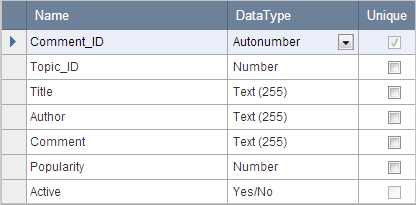
First we will need a table to hold all of the comments submitted. Be sure to include a unique Comment_ID field such as an AutoNumber. In this example we are using the following table:

The Popularity field is used to keep track of the current number of up votes minus down votes for each record.
The Active (Yes/No) field allows us to create an approval process for new comments. For more information on how to set up this feature see: Create an Approval Process for New Records
Create a new comment Submission Form
The first step is to create a Submission Form to allow your users to leave new comments.
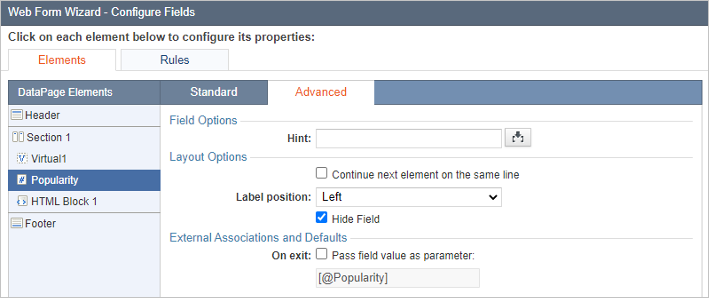
Include all of the fields you would like the user to fill out. Here the user fills out Title, Author, and Comment. The Active field is not included in the selected fields (so it is set to “unchecked” when a new record is created). The Popularity field is set to Hidden and includes a default value of 0.
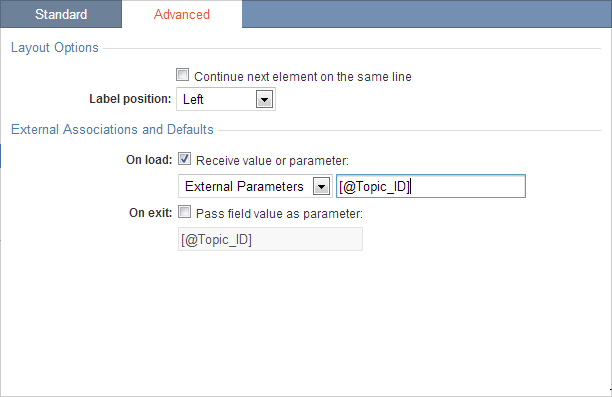
The Topic_ID is filled by receiving a parameter passed using a query string. To receive the Topic_ID parameter be sure that both advanced options and parameters are enabled on this DataPage. Select the Topic_ID from the DataPage Elements Panel. Click on the Advanced tab. Under the On load section select the Receive parameter radio button.


This form also has a notification email included to notify the site admin when new comments are submitted so that they can review them and check Active using a separate DataPage in their Admin interface.
Create the comment viewer Report DataPage
Now that we can submit new comments, we can create a List Report DataPage to view the comments in order of popularity.
Filter based on pre-defined criteria
Create a List Report DataPage using the Comments table as your data source. Be sure to enable advanced options and parameters for this DataPage.
The first step is to create a filter for this DataPage using the data located in the URL query string. Select Filter data based on your pre-defined criteria and allow both Bridge and external parameters. Press Next.

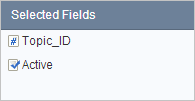
Select both the Topic_ID field and the Active field to be included in the filter. Press Next.

On the Configure Filtering Fields screen select the Topic_ID element and click on the Advanced tab. Click Receive parameter and the parameter name will be automatically generated, make sure the parameter name matches the name of the query string in your URL exactly.

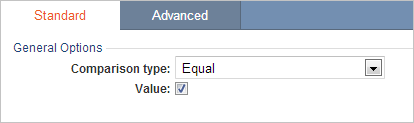
Be sure the Active (Yes/No) is set to display only “checked” records.
Format your results page
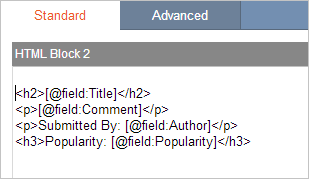
The results page can include any data you would like. In this example we are only using an HTML block to both display the comment information and create the voting controls. Because parameters are enabled for this DataPage, we can create each individual results item using basic HTML and inserting parameters using the insert button at the lower right of the HTML block.

Now we will add the voting controls. The voting controls consist of two links, one to vote a comment up, and one to vote a comment down. We will create the vote submission DataPage in the next step. The secret here is that both the up and the down control will open a popup to the same DataPage. The comment will be voted up or down depending on the extra data we pass via query string. For now, we will create placeholder links. Insert the following code into your HTML block:
<a onclick="window.open('URL','popup','width=10,height=10,scrollbars=no,resizable=no,toolbar=no,directories=no,location=no,menubar=no,status=no,left=50,top=50'); return false"> DOWN </a>
Continue to the Details screen and select the No Details Page. Press Finish to save your DataPage.
Create the vote Submission Form
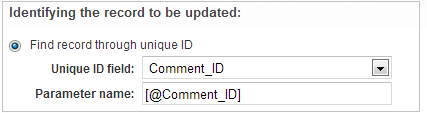
Create a new DataPage and select Single Record Update Form from the Forms type. Select the Comments table as the data source, and be sure to enable advanced options and parameters. Click Next. This Single Record Update Form will locate the appropriate comment using the Comment_ID parameter.

Now this form is ready to receive the Comment_ID from our comment viewer Report DataPage. Click Next.
Move the Popularity field to the right hand panel using the arrow button. Click Next. Be sure to set the Popularity field from “Display Only” to “Text Field” using the form element dropdown.
This example also includes a JavaScript to limit the number of votes a user can make to five. This prevents users from voting overwhelmingly for their own comments.
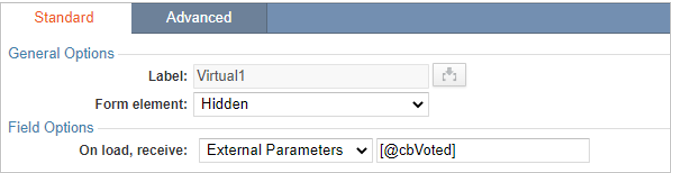
Using the Insert button at the lower right hand corner of the DataPage elements panel, insert one virtual field, one HTML block, and Header and Footer sections.

Select the Virtual field and click on the Advanced tab. Under the On load section click the Receive parameter radio button and enter the parameter:
Under the On exit section, click the checkbox for Pass field value to next page, and again enter the parameter as [@cbVoted]

In the header, add the following div tag:
This will hide the DataPage from the end user so they cannot affect their vote being submitted.
Now we are going to add two scripts to the DataPage, one in the HTML block, and one in the DataPage Footer.
Insert this script into the HTML block:
var vote = "[@cbVote]";
if(vote == "")
vote = "0";
var voted = "[@cbVoted]";
if(voted == "")
voted = "0";
if(parseInt(voted) < 5){
document.getElementById('EditRecordPopularity').value = parseInt(document.getElementById('EditRecordPopularity').value) + parseInt(vote);
document.getElementById('cbParamVirtual1').value = parseInt(voted) + 1;}
</script>
This script checks to see if the user has cast more than 5 votes. If the user hasn’t then this script will add or subtract from the popularity depending on whether the user was “voting up” the comment or “voting down”. The table after the script will hide the submission button.
Now in the footer add this script:
<script>
var voted = "[@cbVoted]";
if(voted == "")
voted = "0";
if(parseInt(voted) < 5){
document.getElementById("caspioform").submit();}
else{
document.write("<h2>I'm sorry!</h2><p>You have reached the maximum amount of votes allowed for this period.</p>");}
This script will either submit the Caspio Form or display a message if the user has exceeded their number of votes.
Click Next.
On the Destinations and Triggers screen we are also going to include one final script to close the pop-up window and refresh the parent page. Insert the following script after the submission message:
window.close();
if (window.opener && !window.opener.closed) {
window.opener.location.reload();}
</script>
Deployment
The comment submission form and the comment rating form can be embedded directly to the same webpage.
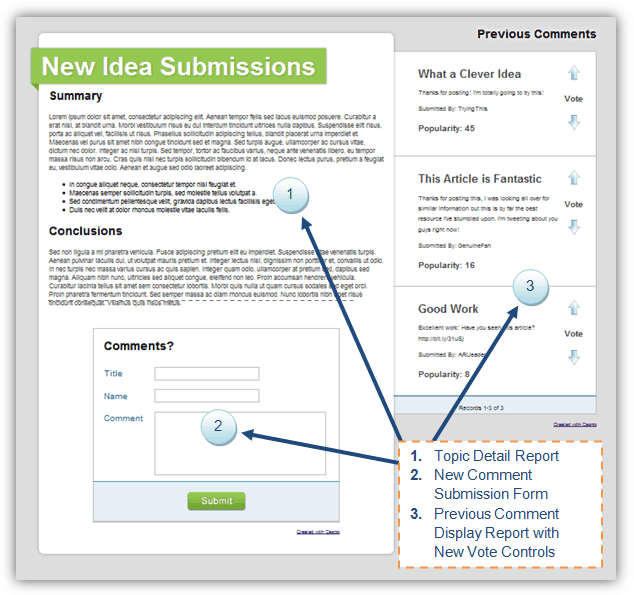
The vote Submission Form must also be embedded to a webpage at the same domain. For example, if you embed your www.samplesite.com, you will also need to embed your vote submission form to another page at www.samplesite.com.
If you use Direct from Caspio deployment, the parent page – holding the comment Report and Submission Form will not automatically refresh. This is due to a security concept in JavaScript called the Same Origin Policy. Basically, the popup window will not be able to ask the parent window to refresh.
Once you’ve embedded the vote Submission Form we can now complete the place holder voting controls in the comment viewer Report. Select your comment viewer Report DataPage and click the Edit button. Navigate to the Configure Results Fields screen and locate the “Up” and “Down” links that were added in a previous step.
Now you can replace the temporary URL in these links with the URL of your vote submission webpage. We also need to add two query strings to transmit the comment, and whether the vote is positive or negative.
The comment_ID query string will be passed using a parameter. After the URL add the following:
The actual vote will be different for the “vote up” and the “vote down” links:
Up:
&cbVote=1
Down:
&cbVote=-1
Note that the cbVote query string is preceded by an “&” (and symbol) and not a “?” (question mark) because it is the second query string.
Sample:
Testing
At this point you should be able to submit and arrange the comments by voting them up or down. Also after your user has submitted more than 5 votes they should receive an error message saying they have exceeded their maximum votes.
Please note: This article references external HTML codes, JavaScript, or third-party solutions which are not built-in features of Caspio Bridge, and as such are provided "as is" without any warranties, support or guarantees. These tips are provided as samples to assist you in the customization of your applications, and you will need a basic understanding of these languages in order to implement successfully.

Please note: This article references external HTML codes, JavaScript, or third-party solutions which are not built-in features of Caspio Bridge, and as such are provided "as is" without any warranties, support or guarantees. These tips are provided as samples to assist you in the customization of your applications, and you will need a basic understanding of these languages in order to implement successfully.