Creating Date-Specific New Record Links in Calendar DataPages
3 minutes to readCaspio allows you to add a date-specific record link to your monthly style Calendar DataPages. Thanks to this link, you can click on any visible day in your calendar and add a new record on that specific date. This feature makes your DataPage function like a date picker tool and can help increase the efficiency and accuracy of entering new date-structured records like events and tasks. You will need a Submission Form DataPage to add records to your Calendar’s source table.
Prerequisites:
Ensure you have created a monthly style Calendar DataPage.
Note: This solution only works with Frame and URL Caspio deployment methods.
Steps:
- Create a Submission Form DataPage.
- Create or edit a Submission Form DataPage with the same source table as your Calendar DataPage.
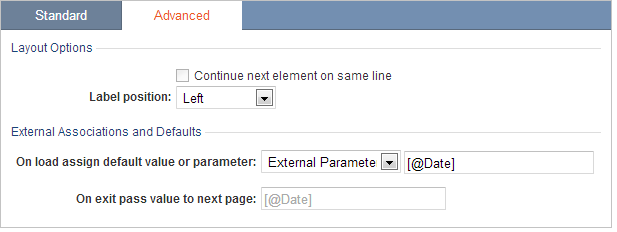
- In the Configure Fields screen, select your date field in the DataPage Elements panel. Select the Advanced tab, and in the External Associations and Defaults section mark On load: Receive value or parameter. From a dropdown, select External Parameters. Add a parameter called Date in the field provided. Ensure that it uses the correct parameter format: [@Date].
Note: If you use a different fieldname in this parameter be sure to note it and change the “Date” fieldname in the query string used in the JavaScript.
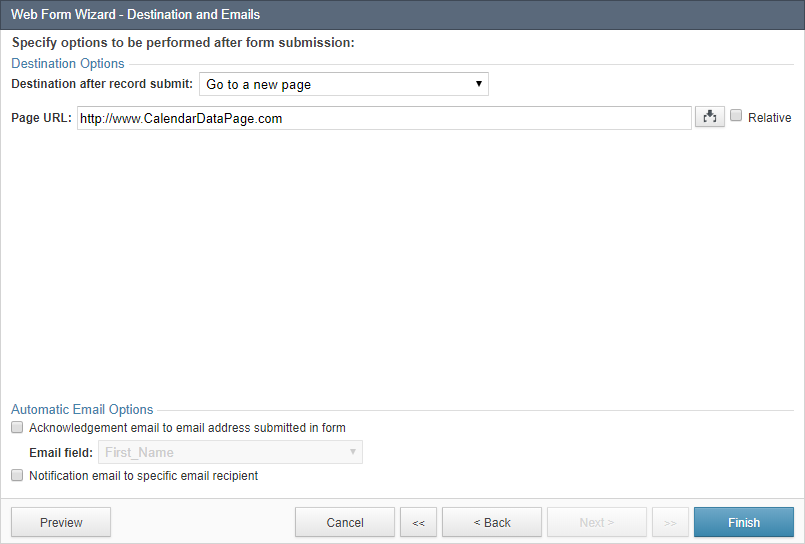
- On the Destination and Emails screen, select the Go to a new page option and type in the address of the webpage that is hosting your Calendar DataPage.
- Save the changes.
-
- Deploy your Submission Form DataPage and note the URL of your Submission Form as it will be needed later.
- Edit Calendar Datapage.
- Edit your Calendar DataPage.
- In the Configure Fields for Calendar screen, add Header & Footer sections using the Insert button at the lower right of the DataPage Elements panel.
- Paste the following JavaScript code into the DataPage footer:
Note: If you are using a URL generated from the URL deployment method replace the question mark with an and symbol (&).
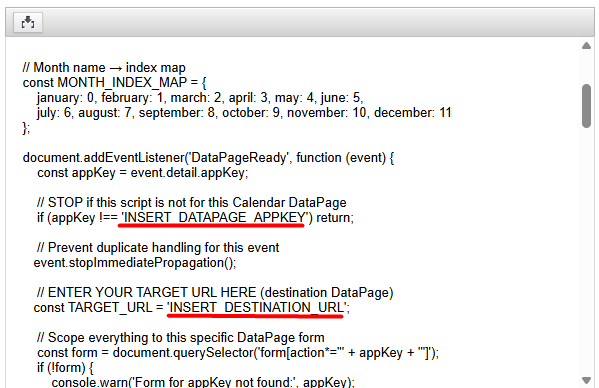
- In the pasted code, replace the placeholder strings with your own DataPage AppKey and destination URL:
- Optional: Test and format your application.
- Test your application by clicking the Add New link generated in your Calendar DataPage. Check if:
- You’re directed to your Submission Form.
- The date field is visible in your Submission Form and has received the correct date from the Calendar DataPage.
- Once you submit the Form, you’re redirected to the Calendar DataPage and see the new record added to the day you originally clicked.
- Once you are sure the Submission Form and Calendar DataPage are correctly linked, you can hide the Date field in your Submission Form and the field will still receive the parameter.
- You can change the link text directly in JavaScript or replace it with another piece of HTML such as an image.
Note: You cannot use single quotes (apostrophes) in your linked HTML object.
Note: This article uses external HTML, JavaScript, or third-party solutions to add functionality outside of Caspio standard feature set. These solutions are provided “as is” without warranty, support or guarantee. The code within this article is provided as a sample to assist you in the customization of your web applications. You may need a basic understanding of HTML and JavaScript to implement successfully.
For assistance with further customization based on your specific application requirements, please contact our Professional Services team.
code1
<script>
/*
 * TECH TIP: Add an “Add New” link to each Calendar cell.
 * Works in BOTH Monthly and Weekly view.
 * Monthly: Uses <time datetime="YYYY-MM-..."> + the day number.
 * Weekly: Reads the first date from the caption and calculates the rest.
 * Adds a link like: TARGET_URL?Date=M/D/YYYY
 */
(function () {
    // Shared regex patterns (scoped inside this IIFE)
    const MONTHLY_DATETIME_REGEX = /^(\d{4})-(\d{2})/;
    const WEEKLY_CAPTION_REGEX = /([A-Za-z]+)\s+(\d{1,2}),\s*(\d{4})/;
    // Month name → index map
    const MONTH_INDEX_MAP = {
        january: 0, february: 1, march: 2, april: 3, may: 4, june: 5,
        july: 6, august: 7, september: 8, october: 9, november: 10, december: 11
    };
    document.addEventListener('DataPageReady', function (event) {
        const appKey = event.detail.appKey;
        // STOP if this script is not for this Calendar DataPage
        if (appKey !== 'INSERT_DATAPAGE_APPKEY') return;
        // Prevent duplicate handling for this event
        event.stopImmediatePropagation();
        // ENTER YOUR TARGET URL HERE (destination DataPage)
        const TARGET_URL = 'INSERT_DESTINATION_URL';
        // Scope everything to this specific DataPage form
        const form = document.querySelector('form[action*="' + appKey + '"]');
        if (!form) {
            console.warn('Form for appKey not found:', appKey);
            return;
        }
        // Calendar caption (month/week label at the top)
        const caption = form.querySelector('li.cbResultSetCalendarCaption');
        if (!caption) {
            console.warn('Calendar caption not found within form.');
            return;
        }
        // Monthly view has a <time> tag; weekly view does not
        const captionTime = caption.querySelector('time');
        const isMonthlyView = !!captionTime;
        // All calendar day cells inside this form
        const cells = form.querySelectorAll('div.cbResultSetCalendarField');
        if (isMonthlyView) {
            handleMonthlyView(captionTime, caption, cells, TARGET_URL);
        } else {
            handleWeeklyView(caption, cells, TARGET_URL);
        }
    });
    /**
     * Handle Monthly view Calendar
     */
    function handleMonthlyView(captionTime, caption, cells, TARGET_URL) {
        let baseFormat = ''; // Example: "1/Day/2026"
        let year, monthNumber;
        // Example datetime: "2026-01-27T09:10:37.610"
        const datetime = (captionTime.getAttribute('datetime') || '').trim();
        const match = datetime.match(MONTHLY_DATETIME_REGEX);
        if (match) {
            year = parseInt(match[1], 10);
            monthNumber = parseInt(match[2], 10); // 1–12
        }
        // Fallback: use caption text like "January 2026"
        if (!year || !monthNumber) {
            const parts = caption.textContent.trim().split(' ');
            const monthName = (parts[0] || '').toLowerCase();
            year = parseInt(parts[1], 10);
            const monthIdx = MONTH_INDEX_MAP[monthName];
            if (monthIdx != null && !isNaN(year)) {
                monthNumber = monthIdx + 1;
            } else {
                console.error('Unable to parse month/year for monthly view.');
                return;
            }
        }
        baseFormat = monthNumber + '/Day/' + year;
        cells.forEach(function (cell) {
            // Use a data attribute to avoid adding the link twice
            if (cell.dataset.linkAdded === 'true') return;
            // Extract the last number (the day) from something like "Thu 1"
            const dayMatch = cell.textContent.match(/(\d{1,2})\s*$/);
            if (!dayMatch) return;
            const day = dayMatch[1];
            const finalDate = baseFormat
                .replace(/Day/gi, day)
                .replace(/\s+/g, ''); // remove extra spaces just in case
            insertLink(cell, TARGET_URL, finalDate);
        });
    }
    /**
     * Handle Weekly view Calendar
     */
    function handleWeeklyView(caption, cells, TARGET_URL) {
        const captionText = caption.textContent.trim();
        const match = captionText.match(WEEKLY_CAPTION_REGEX);
        if (!match) {
            console.error('No date pattern found in weekly caption.');
            return;
        }
        const monthName = match[1].toLowerCase();
        const day = parseInt(match[2], 10);
        const year = parseInt(match[3], 10);
        const monthIdx = MONTH_INDEX_MAP[monthName];
        if (monthIdx == null || isNaN(day) || isNaN(year)) {
            console.error('Failed to interpret weekly start date from caption.');
            return;
        }
        // Safari-safe Date creation
        const weekStart = new Date(year, monthIdx, day);
        cells.forEach(function (cell, index) {
            if (cell.dataset.linkAdded === 'true') return;
            // Add index days to the start date
            const cellDate = new Date(weekStart.getTime());
            cellDate.setDate(weekStart.getDate() + index);
            const m = cellDate.getMonth() + 1; // 1–12
            const d = cellDate.getDate();
            const y = cellDate.getFullYear();
            const finalDate = m + '/' + d + '/' + y;
            insertLink(cell, TARGET_URL, finalDate);
        });
    }
    /**
     * Insert the "Add New" link into the cell and mark it as processed.
     */
    function insertLink(cell, targetUrl, dateString) {
        const linkHTML =
            '<br><a style="text-decoration:none;" href="' +
            targetUrl + '?Date=' + dateString +
            '">Add New</a>';
        cell.insertAdjacentHTML('beforeend', linkHTML);
        cell.dataset.linkAdded = 'true';
    }
})(); // ← IIFE closes here: avoids global name collisions
</script>

