Adding PDF Download in Chart DataPages
1 minute to readIn this article, we will guide you on how to add PDF download as an option in a Chart DataPage.
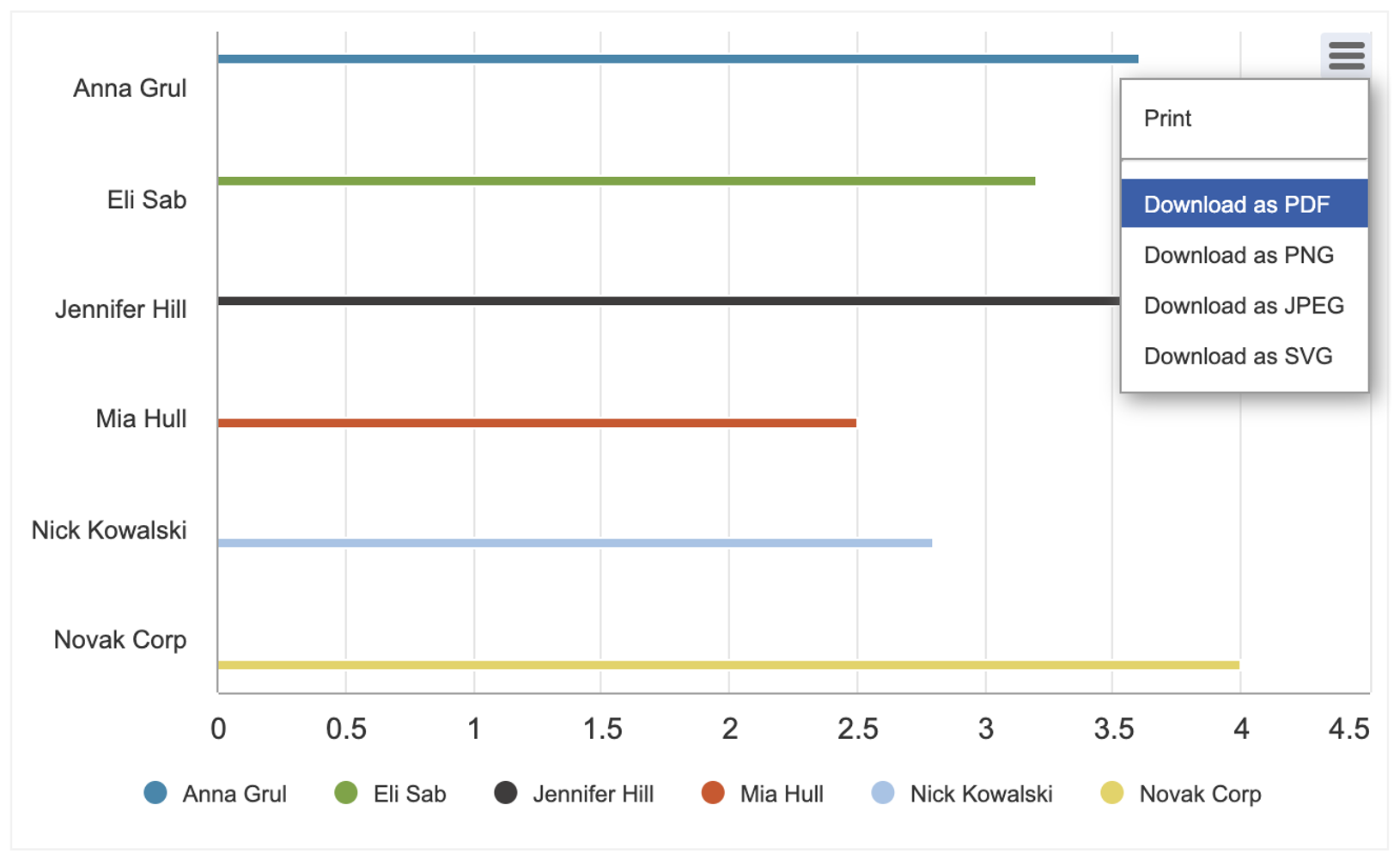
Steps:
- Create a Chart DataPage.
- In the Configure Chart Options screen of the DataPage wizard, select Chart Settings > Enable chart actions menu.
- Add a Header and Footer in the Configure Chart Options screen of the DataPage wizard.
- Disable the HTML Editor in the Footer section.
- Copy and paste the following code in the Footer section:
- Save the DataPage.
Note: This article uses external HTML, JavaScript, or third-party solutions to add functionality outside of Caspio standard feature set. These solutions are provided “as is” without warranty, support, or guarantee. The code within this article is provided as a sample to assist you in the customization of your web applications. You may need a basic understanding of HTML and JavaScript to implement successfully.
For assistance with further customization based on your specific application requirements, please contact our Professional Services team.

