Archiving, Sending, and Receiving Apps Using Vault
5 minutes to readPackages include the tables and directories associated with an application. App parameters, their values, and descriptions are included in packages.
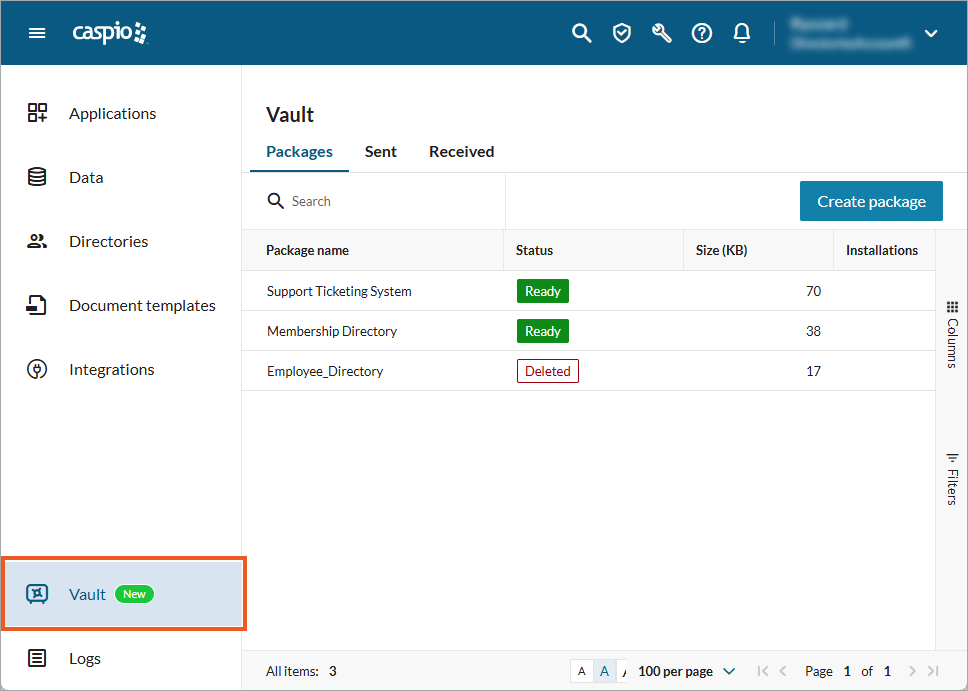
Packages overview
Vault organizes packages across three tabs:
- Packages: Shows packages that are available in your account for installation.
- Sent: Shows packages you have sent to other accounts. Recipients are identified by account ID.
- Received: Shows packages you have received from other accounts.
Viewing package properties
Hover over a package in the Packages, Sent, or Received list and click Properties to open the Properties panel. The panel displays the following details:
- About this package — identifiers, creation details, size, notes, the associated application and its origin ID, and (for sent packages) recipient account ID.
- Contents — a list of what the package includes.
- Activities — installation and download history.
Creating app packages
- In the sidebar, select Vault to open it, then select Create Package.
- In the Select App step:
- Select the Flex application you want to package from the Application dropdown. Only Flex applications in your account are available.
- Enter a Package Name. This name helps recipients identify the application.
- Optionally, enter Notes to describe the package contents or highlight changes since the previous version.
- Select Next.
- In the Include Users and Data step, choose which users and records to include in the package.
- For each directory, choose an Include Users option:
- None – Do not include any users from the directory.
- All – Include all users from the directory.
- Used in Roles – Include only users assigned to roles within the application.
- For each table in the application listed along with its current record count, select Include Records for any table whose data should be bundled into the package.
- Select Next if the application contains configurable app settings. Otherwise, select Create Package to create the package.
- For each directory, choose an Include Users option:
- In the Review App Settings step, review and update the settings that will be included in the package. If the package is intended for use within the same account, you can typically leave these values unchanged. If the package will be installed in another account, review them carefully before proceeding.
- For sender email addresses (shown only if the application uses email notifications), review each sender email and confirm or update the following values as needed:
- Sender Email
- Sender Name
- Description (optional)
- For app parameters (shown only if the application contains app parameters), review the application parameters included in the package and verify or update the following values as needed:
- Parameter Name
- Value
- Description (optional)
- Select Create Package.
- For sender email addresses (shown only if the application uses email notifications), review each sender email and confirm or update the following values as needed:
After creation, the package appears in your Packages list and consumes file storage in your account.
Sending app packages
You can send a copy of a Flex app package to up to 10 Caspio accounts. Before you begin, make sure you have the account IDs of the intended recipients.
- In the Caspio left panel, click Vault.
- Hover over the package you want to send and click Send Copy.
- Optional: Edit the package name.
- In the Recipient Account IDs field, enter up to 10 account IDs. To see accounts you have access to, click inside the field.
- Optional: Add a note for recipients.
- If the package includes data from one or more tables, a compliance notice appears reminding you to ensure the transfer meets all applicable data protection, privacy, and data residency requirements. Select the acknowledgment checkbox to confirm your responsibility for compliance before proceeding.
- Click Send.
After sending, the package appears in your Sent tab, and a corresponding entry appears in the recipients’ Received tab. The recipients also get an email and a Caspio account notification, which contain the sender name and email address.
If you no longer want the recipients to download the package, you can delete it in the Sent tab. If they already downloaded the package, they retain the access but cannot download the package after you delete it.
The list of sent packages allows you to track the number of package downloads (“Downloaded” column).
Receiving app packages
When someone sends you a package, it appears in Vault → Received. To make the package available for installation, you must download it. After downloading, the package appears in your Packages tab and you can install it from there. You can download the same received package multiple times. Vault shows download counts to you as well as the sender.
Received packages count against your file storage resource only after you download them.
If you no longer need a received package to be available for downloading, you can remove it. The status changes to “Removed”. If the sender deletes the package, the status is “Deleted”. Removed or deleted items remain visible for 3 months and are then permanently erased.

