Caspio MCP Server
5 minutes to readPrerequisites:
- A Caspio account with the Integrations feature
- An AI tool account, most likely on a paid plan. Free tiers of most AI tools do not support custom MCP connections.
- Access to an AI tool that supports MCP connections (currently ChatGPT and Claude)
Creating an API profile and configuring data permissions
An API profile provides the credentials used to authenticate with your Caspio account. Its permissions determine which tables and views the MCP server can reach, and what it can do with them. A new API profile has no permissions on existing data until you grant them, so the MCP server can reach nothing until you decide what to expose.
- Create an API profile, or choose an existing one. See API profiles.
- On the profile’s Permissions tab, grant access to the tables and views the MCP server should reach.
- On the Credentials tab, copy the Client ID, Client secret, and Integration URL to connect your AI tool.
Start with Read Data only. Once you are comfortable with how the MCP Server works, you can enable write operations (Insert, Update, Delete) as needed.
Connecting your AI tool
The connection process varies slightly depending on which AI tool you are using. Below are instructions for ChatGPT and Claude. For more information, follow the documentation of the AI tool that you use.
Connecting ChatGPT
In ChatGPT, developer mode is required for creating apps. To enable it, go to Settings → Apps → Advanced settings → Developer mode. Its availability depends on the account type.
- In ChatGPT, go to Settings → Apps.
- Click the Create app button to create a new app.
- On the screen that opens, enter the name and description for the app.
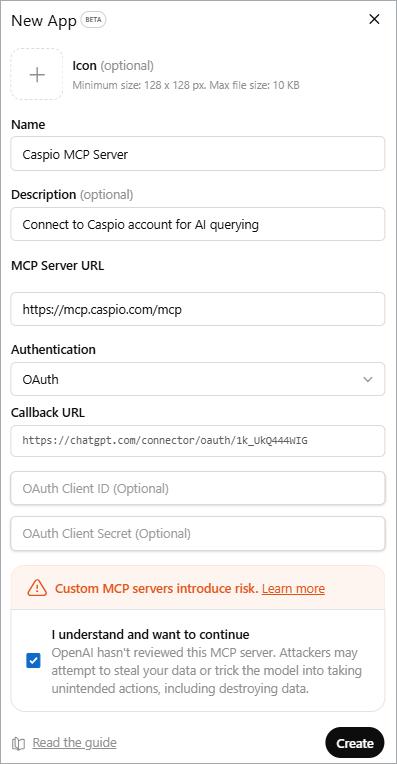
- In the MCP Server URL field, enter: https://mcp.caspio.com/mcp
- From the Authentication dropdown, select OAuth.
- At the bottom, confirm that you understand the risks of custom MCP servers by selecting the I understand (…) checkbox.
- Click Create.
- Once the connection initiates, on the sign-in screen of the Caspio MCP Server, enter your Integration URL, Client ID, and Client Secret from your API profile that you created earlier. Click Connect.
Result: You are now connected. Start asking questions about your data.
Connecting Claude
- In Claude, go to Settings → Connectors.
- Click Add custom connector.
- On the screen that opens, enter the connector name.
- In the Remote MCP server URL field, enter: https://mcp.caspio.com/mcp
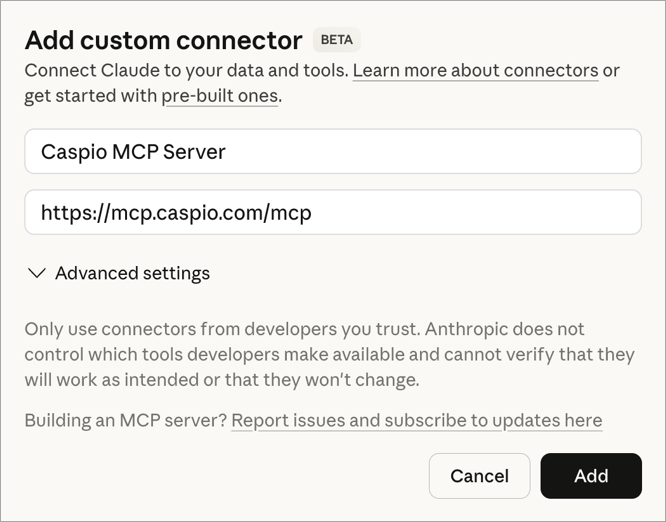
- Click Add to include the Caspio MCP in your list of connectors.
- Select Caspio MCP, then click Connect.
- When prompted, enter your Integration URL, Client ID, and Client Secret from your API profile. Click Connect.
Result: You are now connected. Start asking questions about your data.
Tips and best practices
- Start with read-only access: When first connecting, configure your API profile with Read Data permissions only. This lets you explore querying your data safely before enabling write operations.
- Use clear table and view names: AI tools work best when your table and view names are descriptive and meaningful. If your objects have technical or abbreviated names (for example, tbl_ord_dtl), the AI may not know which table to query. In that case, include the specific table or view name in your prompt. For example, instead of “Show me recent orders”, say “Show me recent records from the Order_Details table.”
- Be specific in your questions: The more specific your question, the better the results. Include time ranges, field names, or filter criteria when you can. For example, “Show me all open support tickets created this month assigned to the West region” will produce more accurate results than “Show me tickets.”
- Review write operations: When using Insert, Update, or Delete operations through the MCP Server, review the AI’s proposed action before confirming. AI tools will typically ask for confirmation before modifying data, but it is good practice to double-check the details.
Troubleshooting
Connection fails
- Verify your Integration URL, Client ID, and Client Secret are correct.
- Confirm your Caspio plan includes API access.
- Check that your API profile has not been disabled.
No data returned
- Verify your API profile has Read Data permissions for the tables you are querying.
- If your table names are not descriptive, specify the exact table or view name in your prompt.
- Try a simpler query first (for example, “List all tables available”) to confirm the connection is working.
Unexpected results
- AI tools interpret natural language, so results may vary. Rephrase your question with more specific criteria.
- If the AI is querying the wrong table, specify the table name directly in your request.
Data privacy notice
When you use the Caspio MCP Server, your queries and data pass through the third-party AI tool you are connected to. While Caspio maintains its data sovereignty and security commitments within the platform, data sent through the MCP Server is subject to the privacy and data handling policies of the AI provider. Depending on the AI tool, your data may be processed in the United States.
We recommend reviewing your AI provider’s data handling policies to ensure they align with your organization’s requirements before connecting.

